
Setup tutorial · Android & ChromeOS · Updated 2026
TiviMate IPTV Setup on Android & ChromeOS
Quick answer: For a TiviMate IPTV setup, install TiviMate IPTV Player from Google Play (or the APK link from your provider), open it, choose Add playlist, select Xtream Codes, enter your server URL, username and password, then press Next and Done.
This TiviMate IPTV setup guide shows you how to install TiviMate and load your channels on Android TV boxes, Google TV, Chromecast, Nvidia Shield, Android phones and tablets, and Chromebooks. TiviMate is one of the most popular IPTV players because its guide looks and feels like a cable box.
Before you start, have your IPTV subscription details ready: the server URL, your username and your password. The whole TiviMate IPTV setup takes about five minutes.
Which devices support TiviMate?
| Device | How to install |
|---|---|
| Android TV / Google TV / Chromecast | Google Play Store |
| Nvidia Shield, Sony, TCL, Hisense TVs | Google Play Store |
| Amazon Firestick | Downloader app (see our Firestick tutorial) |
| Android phones and tablets | Play Store if listed, otherwise APK link |
| Chromebook (ChromeOS) | Play Store if your Chromebook supports Android apps |
Step 1: Install TiviMate on Android TV or Google TV
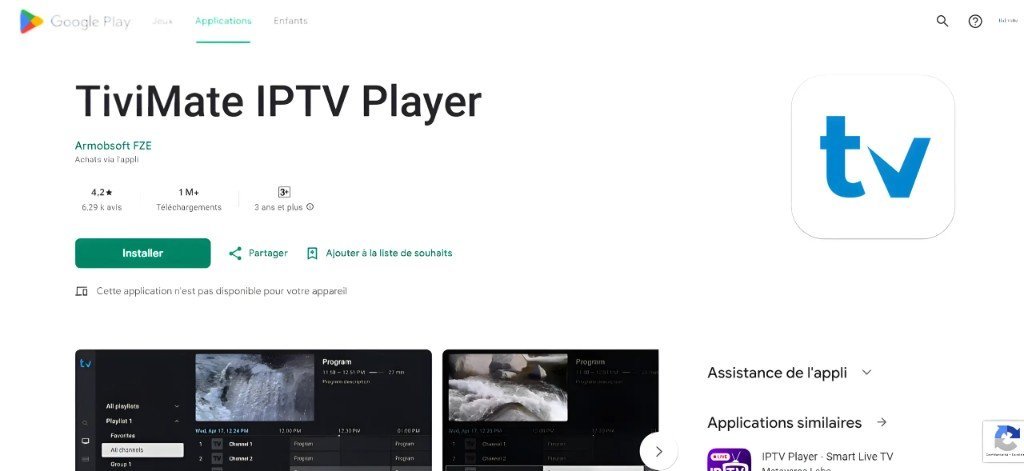
- Open Google Play
On your Android TV, Google TV or Chromecast, open the Play Store. - Search TiviMate
Search for TiviMate IPTV Player. - Install
Press Install, then Open.
Step 2: Install TiviMate on an Android phone or tablet
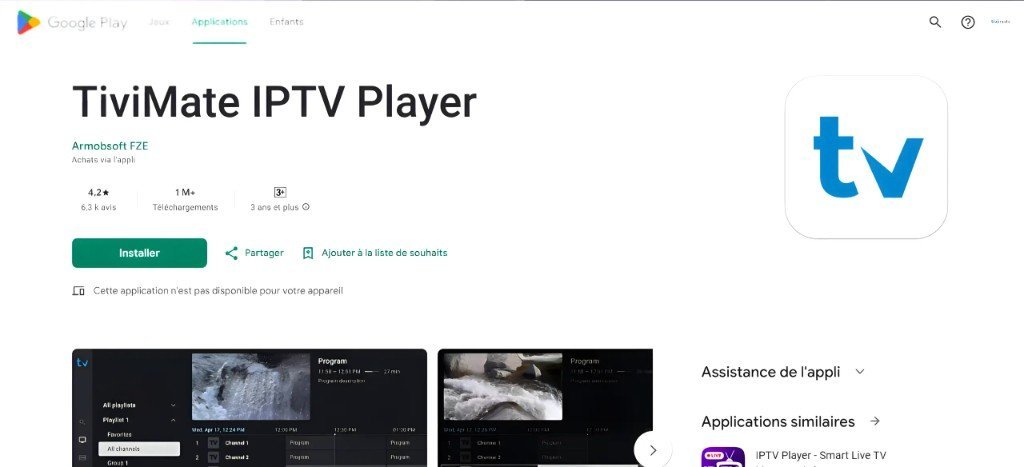
TiviMate is designed for TV screens, so on some phones Google Play says it is not available for your device. If that happens, use the APK link your provider sends you.
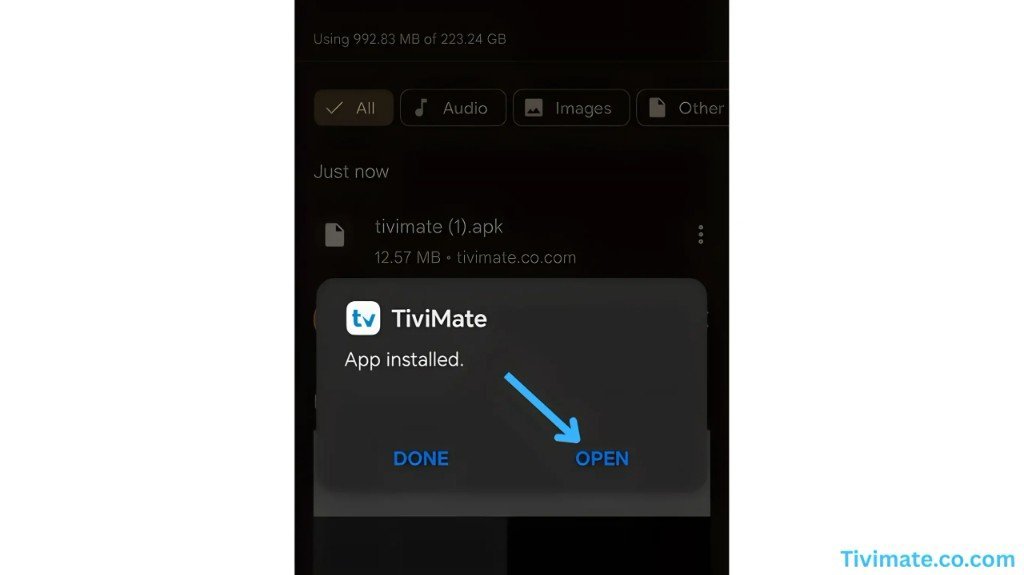
On phones, players such as IPTV Smarters Pro or iMPlayer are often easier to use. See the best free IPTV apps for Android.
Step 3: TiviMate on a Chromebook (ChromeOS)
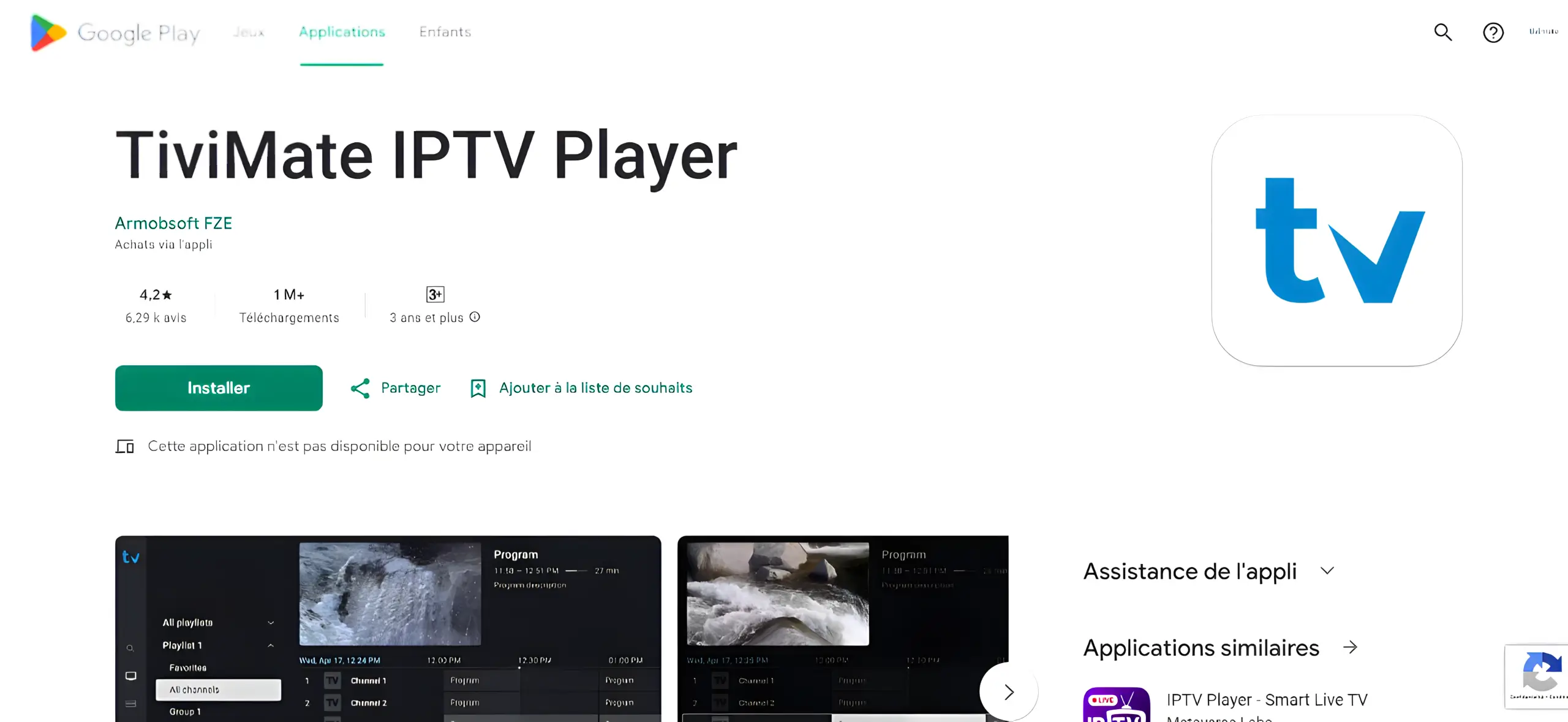
Most recent Chromebooks run Android apps from the Play Store. Open the Play Store on your Chromebook, search for TiviMate and install it. If the store says it is not compatible, install IPTV Smarters Pro or OTT Navigator instead: the login steps are almost the same.
Step 4: Add your Xtream Codes playlist
- Add playlist
On the TiviMate welcome screen, press Add playlist. - Choose Xtream Codes
Select Xtream Codes login (or M3U if you received a link). - Enter your details
Type the server URL, username and password exactly as you received them, then press Next. - Finish
Wait for Playlist is processed, press Done, and open live TV.
Ready to try TiviMate with a reliable IPTV service? Start with a 1-month plan.
Get your IPTV accessTiviMate free vs TiviMate Premium
The free version of TiviMate plays one playlist with the TV guide. TiviMate Premium is a paid upgrade from the developer that unlocks extras such as multiple playlists, catch-up, recording and more customization. You buy it through the TiviMate Companion app on a phone. Premium is optional and separate from your IPTV subscription.
TiviMate IPTV setup tips
- Load the EPGIf the guide is empty, open Settings → EPG and update it.
- Create favoritesLong-press a channel to add it to favorites.
- Use a wired connectionEthernet gives the most stable picture on Android TV boxes.
- Check the time zoneA wrong time zone shifts the guide.
Problems? See our IPTV troubleshooting guide.
More setup tutorials
Ready to switch? Compare our IPTV subscription plans, check the US channel list, or read what IPTV is and how it works.
Frequently asked questions
Is TiviMate free?
TiviMate has a free version for one playlist. TiviMate Premium is an optional paid upgrade that unlocks more features.
Why does Google Play say TiviMate is not available on my phone?
TiviMate is built for Android TV. On some phones the Play Store hides it; use the APK link from your provider or a phone-friendly player instead.
Can I use TiviMate on a Chromebook?
Yes, if your Chromebook supports Android apps and the Play Store lists TiviMate. Otherwise use IPTV Smarters Pro or OTT Navigator.
Xtream Codes or M3U: which should I choose in TiviMate?
Choose Xtream Codes if you have a username, password and server URL. It loads the TV guide and VOD automatically.
Related guides
What Is IPTV? How Internet TV Works (2026 Guide)
IPTV is TV delivered over the internet instead of cable or satellite. Learn how IPTV works, what you need, and whether it is legal in the USA.

IPTV Subscription Cost in the USA (2026): What You Really Pay
How much does an IPTV subscription cost in the USA? Typical monthly and yearly prices, IPTV vs cable costs, hidden fees to avoid and how to pay less per month.
IPTV Not Working? Quick Fixes and Troubleshooting Guide (2026)
IPTV not working, buffering or not loading? Step-by-step fixes for Firestick, Smart TV and phones: internet checks, app cache, login errors, channels not loading and more.