
Setup tutorial · Roku · Updated 2026
IPTV on Roku TV: Easy Setup Guide
Quick answer: To watch IPTV on Roku TV, add the Hot Player channel from the Roku Channel Store, note the MAC address it shows, upload your Xtream Codes login on the Hot Player website using that MAC, then reopen the app and open Live TV.
Roku does not allow most IPTV apps, which is why so many people search for how to get IPTV on Roku TV. The good news: one player, Hot Player, is available in the Roku Channel Store, and it works with Xtream Codes logins. This guide covers Roku TVs, the Streaming Stick, Streaming Stick+, Roku Ultra and Express, with real screenshots.
Have your IPTV subscription details ready (server URL, username, password) and a phone or computer nearby.
Can you get IPTV on Roku TV?
Yes, with limits. Roku is a closed platform, so popular players like TiviMate and IPTV Smarters are not available. Your options are:
| Option | How it works | Best for |
|---|---|---|
| Hot Player (Roku Channel Store) | Install on Roku, add your playlist from a phone or PC | Most Roku users |
| Screen mirroring | Mirror an Android phone or Windows PC playing IPTV to your Roku | Occasional viewing |
| Add a streaming stick | Plug a Firestick or Google TV into the same TV | The best long-term experience |
Step 1: Install Hot Player on your Roku
- Open the store
Press Home, go to Streaming Channels (Roku Channel Store). - Search
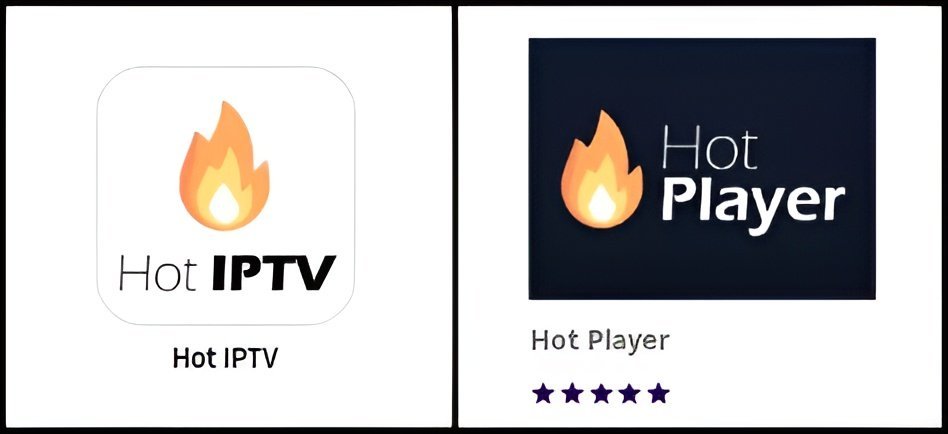
Search for Hot Player (or Hot IPTV) and look for the flame logo. - Add the channel
Select Add channel, then open it.
Step 2: Note the MAC address
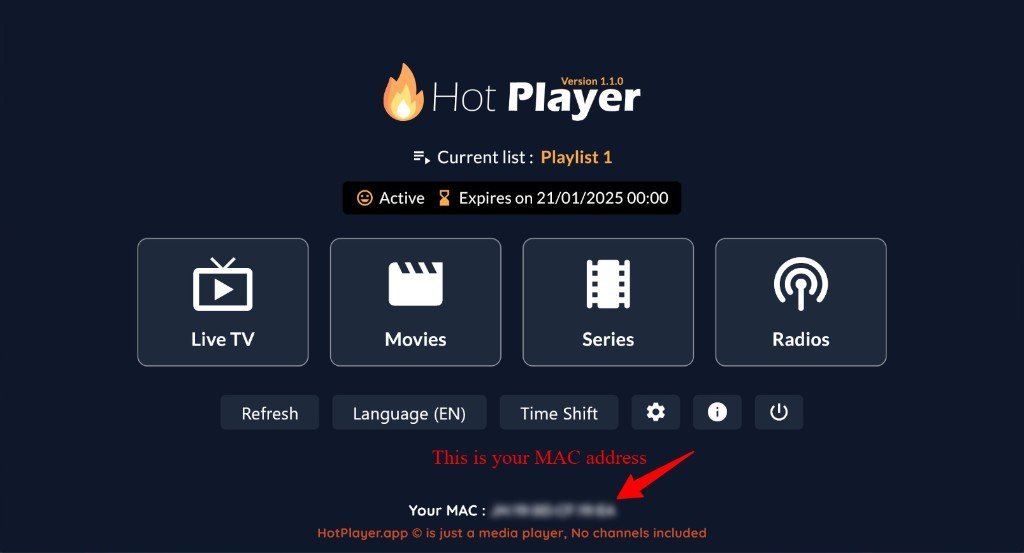
Hot Player shows a MAC address at the bottom of its home screen. This code links your Roku to your playlist. Write it down exactly as shown.
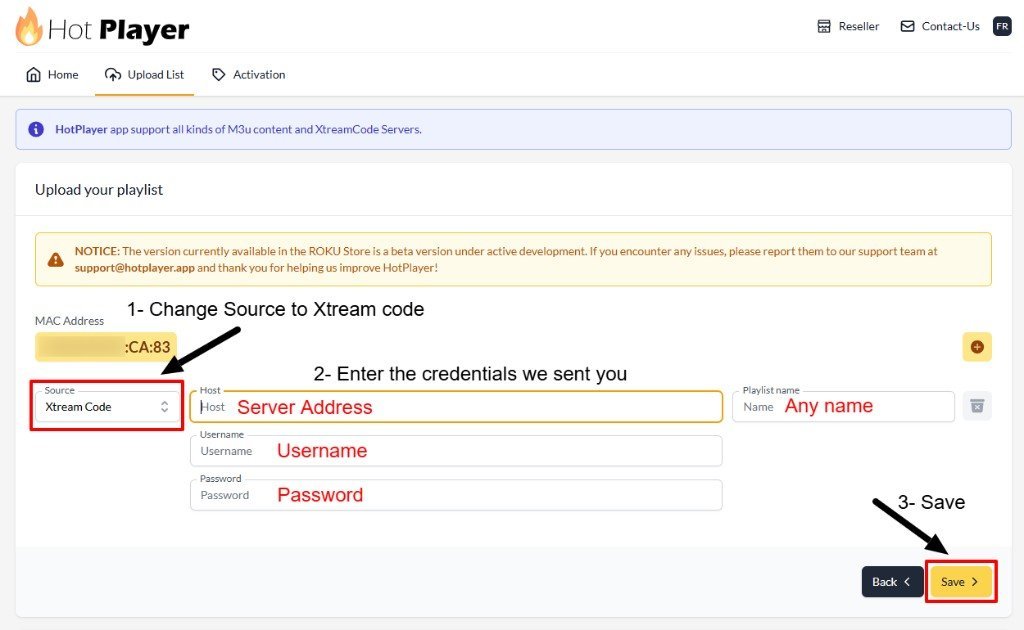
Step 3: Upload your IPTV playlist
- Open the website
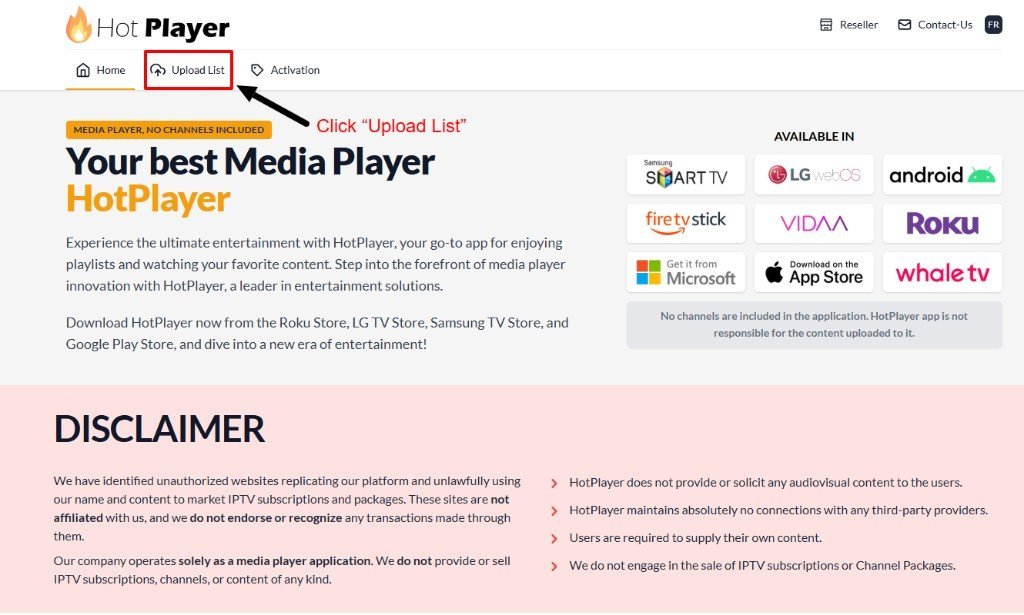
On a phone or computer, open the official Hot Player website and click Upload List. - Enter the MAC
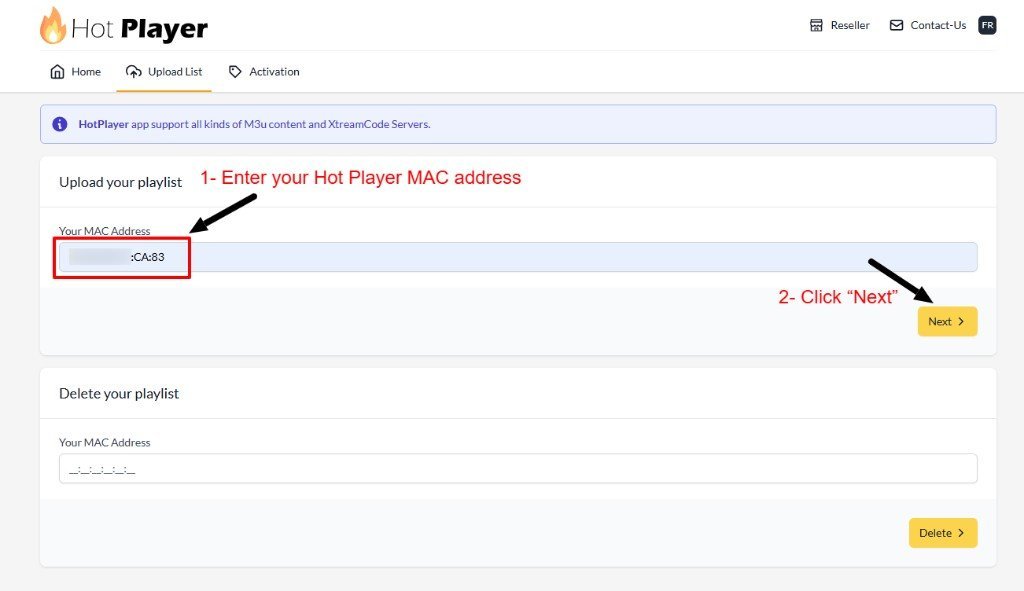
Type the MAC address from your Roku and click Next. - Add your login
Set Source to Xtream Code, enter the server address, username and password, name the playlist and click Save.
Need a login to upload? Pick a plan and receive your details on WhatsApp.
Get your IPTV accessStep 4: Refresh and watch
Go back to your Roku, close Hot Player and open it again (or press Refresh). Open Live TV: your channels are ready.
About Hot Player: Hot Player is a third-party app and may still be in beta on Roku. It usually offers a free trial and then charges its own activation fee. Your IPTV subscription and the player license are separate.
Tips for IPTV on Roku TV
- Use a wired connectionRoku Ultra and many Roku TVs have an Ethernet port.
- Update Roku OSSettings → System → System update.
- Check the MAC carefullyOne wrong character and the playlist will not load.
- Can’t find Hot Player?Store availability varies; a Firestick is the easiest alternative.
Still stuck? Read the IPTV troubleshooting guide.
More setup tutorials
Ready to switch? Compare our IPTV subscription plans, check the US channel list, or read what IPTV is and how it works.
Frequently asked questions
Can I install IPTV Smarters or TiviMate on Roku?
No. Roku does not offer IPTV Smarters or TiviMate. Use Hot Player from the Roku Channel Store, screen mirroring, or add a Firestick.
Is Hot Player free on Roku?
Hot Player usually starts with a free trial, then charges a one-time activation fee to the app developer.
Does IPTV work on every Roku model?
Hot Player works on current Roku TVs and players, including the Streaming Stick, Ultra and Express. Very old models may not support it.
Can I mirror IPTV from my phone to Roku?
Yes. Many Android phones and Windows PCs can mirror to Roku, and supported Roku models accept AirPlay from iPhone.
Related guides
What Is IPTV? How Internet TV Works (2026 Guide)
IPTV is TV delivered over the internet instead of cable or satellite. Learn how IPTV works, what you need, and whether it is legal in the USA.
IPTV Subscription Cost in the USA (2026): What You Really Pay
How much does an IPTV subscription cost in the USA? Typical monthly and yearly prices, IPTV vs cable costs, hidden fees to avoid and how to pay less per month.
IPTV Not Working? Quick Fixes and Troubleshooting Guide (2026)
IPTV not working, buffering or not loading? Step-by-step fixes for Firestick, Smart TV and phones: internet checks, app cache, login errors, channels not loading and more.